
Prepare a restore point
Back up the files and the database and make sure the backup can actually be restored. Verifying backups is exactly what the official WordPress guide stresses. Write down the current versions and the list of planned changes.
Check the updates' server requirements and the compatibility of key dependencies. Don't combine a full site update, a hosting change and a redesign unless you have to: if something breaks, the cause will be harder to find.

Try the changes on a copy
In a staging environment (it's convenient to keep it on the same hosting as the live site), run through the main scenarios: pages, search, the form, the customer account, checkout. Turn off real payments and notifications or use approved test modes. Checking the homepage alone isn't enough.
Watch out for the cache and generated styles. Old assets can hide a problem or make the layout look broken after a perfectly good change. Clear caches in a clear order, then open the site again as a guest.
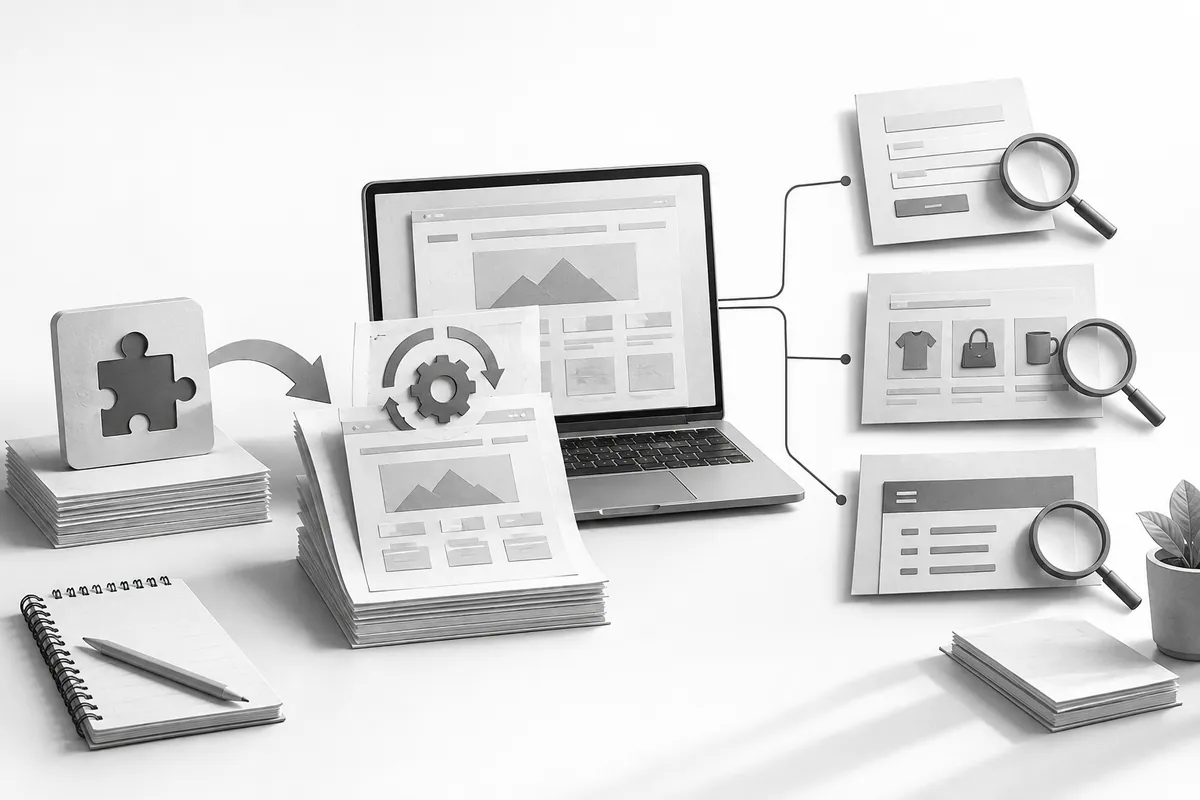
Check again after updating the live site
Compare the result with the staging environment and review the error logs. For an active online store, account for new orders before any database rollback. Sometimes you only need to roll back one component, not the whole site.
The routine is simple: back up, test on a copy, update, recheck. Make it part of your WordPress technical support so nobody has to improvise each time. If your site is constantly evolving, website maintenance keeps a history of changes and knows exactly what to check after every update.